How to Turn Your Android Phone Into a Complete PDF Workstation
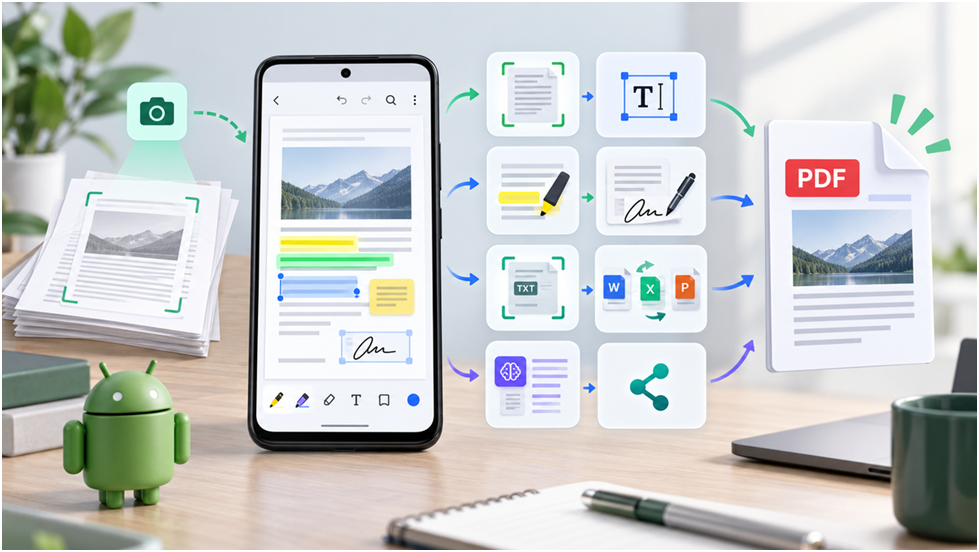
A PDF may need a correction, signature, or review when no computer is available. Android can handle many routine document tasks, but the right method depends on whether the file is a scan, an editable PDF, or an interactive form.
Built-in tools are often enough for scanning and sharing. When a document also needs text editing, OCR, or detailed review, a dedicated editor such as UPDF is one option. The workflow below explains when each type of tool is useful and what to check before sending the finished file.
Choose the Simplest Tool That Fits the Task
A single app is not necessary for every job. Start with the simplest option that can complete the task without changing the document unexpectedly.
| Task | Simple option | When a dedicated PDF tool helps |
| Scan paper | Google Drive | Use Adobe Scan or UPDF when you also need OCR, cleanup, or later editing. |
| Read or mark up | Google Drive PDF viewer | Use Acrobat or UPDF for comments, shapes, and a more detailed review. |
| Edit existing text | Use the original Word or Docs file when available | Use Acrobat Premium or UPDF when only the PDF is available. |
| Fill and sign | Google Drive for supported form fields | Use Acrobat or UPDF for flat forms, signatures, and added text. |
| Summarize a long PDF | Read the contents and relevant sections first | Use Acrobat AI Assistant, Adobe Scan, or UPDF AI for orientation, then verify the source. |
Part 1. Scan Paper Documents Into PDF Files
Google Drive is a convenient starting point for receipts, letters, and forms because it can capture, crop, clean, and save pages as searchable PDFs. Adobe Scan is another option when the workflow also involves scan cleanup or Adobe’s document services.
A dedicated PDF editor is useful when the scan will be edited or combined with other pages. For example, UPDF for Android includes Scan Document in Quick Tools and detects page edges automatically.
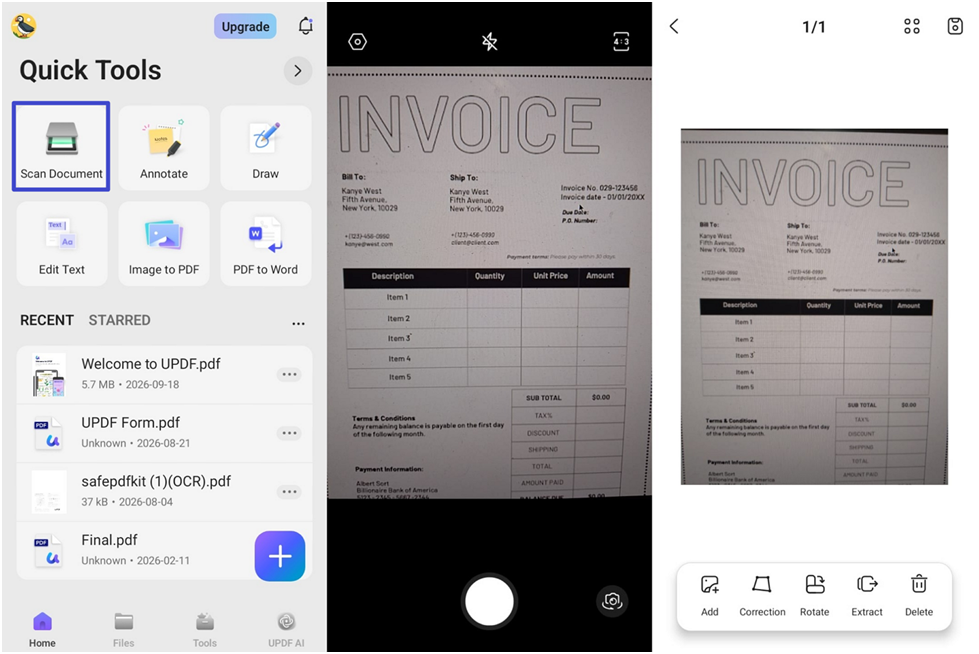
Capture Clean Pages Before Saving
A clean scan starts with a clear capture. Focus on these four factors:
- Lighting: Use even light and avoid flash glare on glossy paper.
- Page edges: Place light paper on a darker surface and confirm all four corners are detected.
- Cropping and rotation: Straighten tilted pages before saving; skew can reduce OCR accuracy.
- Page order: Check multipage files before sharing and reorder, rotate, or remove pages when needed.
Make Scanned PDFs Searchable With OCR
Google Drive normally saves its scans as searchable PDFs. Image-only PDFs from other sources need OCR before their text can be searched or selected. Acrobat mobile can recognize and edit scanned text with an eligible subscription; UPDF also provides searchable and editable OCR modes.
In UPDF, choose Searchable PDF Only to preserve the page appearance, or Editable PDF when the recognized text must be changed. Select the correct document language before processing.
Part 2. Edit Existing PDF Content on Android
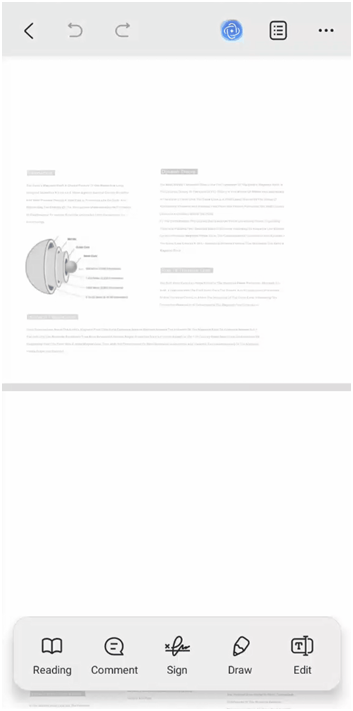
Google Drive is suitable for markup and supported forms but does not directly replace existing PDF text. Acrobat mobile offers text and image editing through paid plans. For small corrections, UPDF can edit PDFs on Android by changing text, images, font sizes, and colors.
Save a copy before editing. Direct changes work well for minor corrections, while extensive rewrites or complex layouts are safer in the original source file or on a desktop.
Correct Existing Text in UPDF for Android
The controls vary by app. Using UPDF as one example:
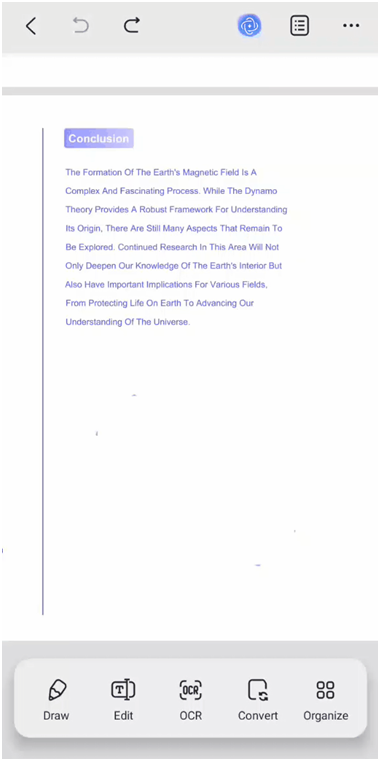
Step 1. Open the PDF and tap Edit.
Step 2. Select the text box, tap Edit again, and make the correction.
Step 3. Open the top-right menu and choose Save or Save a Copy.
Check Fonts, Line Breaks, Images, and Layout
Before sharing, review the saved copy for:
- Fonts: Make sure edited text matches nearby text and that missing fonts were not substituted poorly.
- Line breaks: Check that longer text has not overflowed or changed the page count.
- Images: Confirm that logos and pictures remain aligned with the surrounding content.
- Layout: Look for overlapping text, shifted tables, and misaligned signature fields.
Part 3. Annotate and Review Documents
For quick handwritten markup, Google Drive provides pen, highlighter, eraser, undo, and redo controls. Acrobat Reader adds comments and common review tools, while UPDF is useful when the same file also needs editing, shapes, or text-based notes.
- Students: Highlight key passages and add questions as notes.
- Remote workers: Use text comments and strikethrough to suggest revisions.
- Reviewers: Use drawing and shape tools to mark figures or sections that need attention.
Choose the lightest tool that matches the review. A few freehand marks may only require Google Drive; structured feedback is easier in an editor that supports comments and text markup.
Before sharing, remove private comments and check for sensitive information. A highlight only covers text visually; it does not securely redact the underlying content.
Part 4. Fill, Sign, and Share PDFs
Android phones can fill many PDF forms and add signatures without printing. The best method depends on whether the file contains interactive fields or is simply a scanned page.
Fill Interactive and Flat Forms
Google Drive can complete supported interactive forms. Acrobat mobile provides Fill & Sign for text fields, checkboxes, initials, and signatures, although some form types remain unsupported. If an app shows no form-filling option, the PDF may be a flat or scanned page.
For a flat form, Acrobat or UPDF can place text directly on the page. Review the completed form before saving because signing or flattening a document can restrict later changes.
Sign a PDF Without Printing It
Most full PDF editors follow a similar signing process. Using UPDF as one example:
Step 1. Open the PDF, tap Sign, and choose Signature.
Step 2. Draw a signature or import a signature image.
Step 3. Tap Done to save the signature for reuse.
Step 4. Place and resize it on the signature line, then save a new copy.
Review, Save a New Copy, and Share
Before sending the signed file:
- Review: Confirm that every required field is complete and accurate.
- Save: Keep a separate copy with a clear filename.
- Share: Send it through Android’s share menu or store it in the appropriate cloud folder.
Part 5. Summarize and Question Long PDFs With AI
AI can provide a quick orientation to a long report, but it should not replace reading the relevant pages. Acrobat AI Assistant and Adobe Scan can summarize supported documents. UPDF also lets users summarize PDFs on mobile from the AI panel inside an open document:
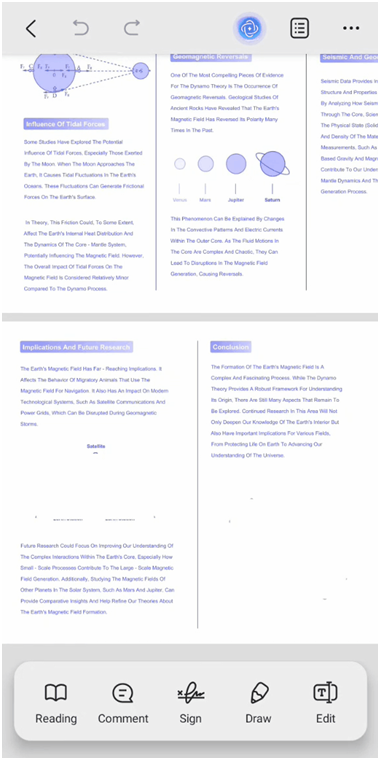
Step 1. Open the PDF, tap UPDF AI, and choose Ask PDF.
Step 2. Enter a focused prompt, such as “Summarize the main findings and identify the relevant pages.”
Step 3. Ask follow-up questions, then compare important answers with the source text.
AI can miss conditions or misread scanned tables. Verify facts, figures, quotations, names, and context in the original PDF before using the result.
Part 6. Build an End-to-End Mobile Document Workflow
A practical mobile workflow can be reduced to these steps:
- Scan and OCR: Capture paper pages, correct the order, and make image-only text searchable.
- Edit and review: Make small corrections, add comments, and check the layout.
- Understand: Use AI for orientation, then verify important details against the PDF.
- Complete: Fill or sign the document and save a separate final copy.
- Share: Use Android’s share menu or the appropriate cloud service.
Conclusion
For routine work, Android can scan, edit, annotate, sign, summarize, and share PDFs without a computer. Built-in tools handle simple tasks, while a dedicated PDF editor is useful when one document requires several of these steps.
Complex layouts, long editing sessions, and large batch jobs are still easier to manage on a desktop.